
Single sign-on
Vaultisse can let people sign in with an account they already have at your organization, through OpenID Connect (OIDC). This works with Authentik, Keycloak, Authelia and any other provider that speaks OIDC. The examples below use Authentik.
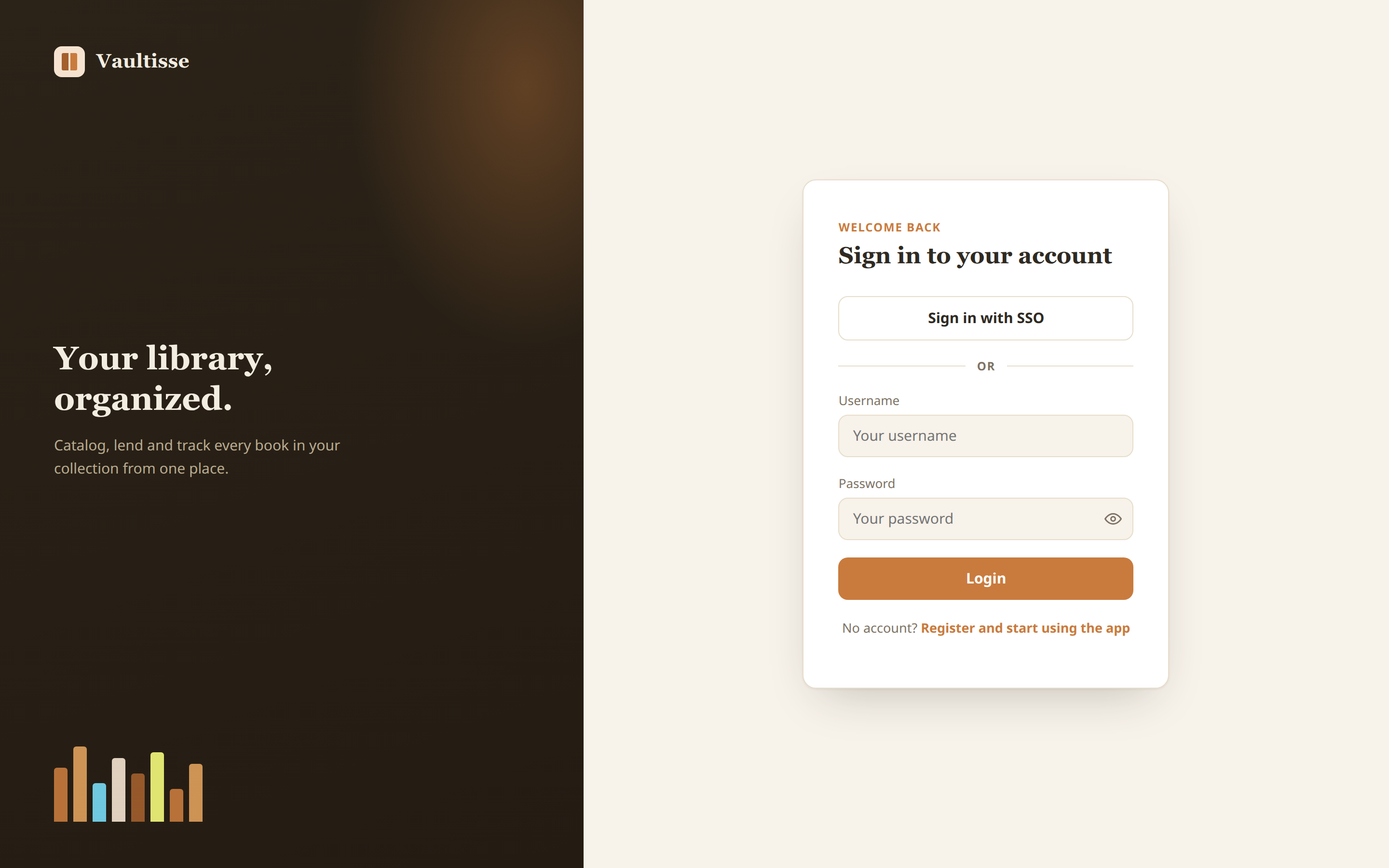
Password sign-in keeps working next to it, unless you turn on SSO-only mode. When SSO is on, the sign-in page gains a button:
How it behaves
- The first time someone signs in with SSO, Vaultisse creates an account for them, with its own library, and no approval step. Whoever the identity provider lets in gets in, so control access there.
REGISTRATION_REQUIRES_APPROVALandREGISTRATION_ENABLEDdo not apply to SSO. - If a person already has a password account with the same email, and the provider says that email is verified, SSO links to that account, so they keep one library. An email the provider has not verified is never used to link accounts.
- SSO sign-ins skip Vaultisse's own two-factor prompt, because the provider already did that step if you require it.
- Logging out ends the Vaultisse session only. It does not sign the person out of the provider.
- Every SSO start asks the provider to authenticate again (
prompt=login), so a shared computer never silently reuses the previous person's session.
1. Create the application at the provider
In Authentik, create an application with an OAuth2/OpenID provider. Names of menus change between versions, the values you need are:
| Setting | Value |
|---|---|
| Client type | Confidential |
| Redirect URI / callback | https://books.example.com/auth/oidc/callback, matched exactly |
| Scopes | openid, profile, email |
Then note three things from the provider: the Client ID, the Client secret, and the issuer address. In Authentik the issuer looks like https://auth.example.com/application/o/vaultisse/, with the slash at the end.
In Authentik, who can open the application is who can sign in to Vaultisse, so bind it to the groups or users you want.
2. Configure Vaultisse
Add these to .env:
OIDC_ISSUER=https://auth.example.com/application/o/vaultisse/
OIDC_CLIENT_ID=<client id>
OIDC_CLIENT_SECRET=<client secret>
OIDC_REDIRECT_URI=https://books.example.com/auth/oidc/callback
OIDC_REDIRECT_URI must be identical to the one registered at the provider, character for character. It is not worked out from the address bar on purpose. Apply it:
docker compose up -dReload the sign-in page, the button should be there. To change its text, set OIDC_BUTTON_LABEL. If you run behind a proxy, TRUST_PROXY=true is needed as usual, see Reverse proxy & HTTPS.
3. Vault access from groups (optional)
Beta: this part is new in
1.3.7-beta.1. See Trying a beta.
Out of the box, SSO only decides who can sign in. Everyone is then invited to shared vaults by hand, see Sharing a library & roles.
If your people already belong to groups at the provider, you can let those groups decide who is in which vault, and with which role. Nobody has to be invited one by one: if you are in the group, you are in the vault, and if you leave the group, you lose access.
On the server, only one thing may need setting: the name of the field that carries the groups. It is groups by default, and Authentik includes it with the profile scope. If your provider uses another name, set OIDC_GROUPS_CLAIM.
In each vault, an admin lists the groups that have access. Open the vault's Manage dialog, find Add by SSO group, add one line per group with the group's name exactly as the provider writes it, pick the role, and click Save:
| SSO group | Role |
|---|---|
family-users | Normal |
library-admins | Admin |
How it works, at every SSO sign-in:
- The person is added to every vault where one of their groups is listed, accepted at once, with the highest role among their matching groups. A person in both
family-usersandlibrary-adminsbecomes an admin. - A vault decides for itself. Each vault lists its own groups, so a person only joins the vaults you map their groups to, and the same group can have different roles in different vaults.
- When a person no longer has any listed group, they are removed from that vault at their next sign-in. Until they sign in again nothing changes, because the groups are read at sign-in.
- If they still have books on loan from that vault, they are not removed. They become Restricted: they can't borrow anything new, but their loans stay on record and can be returned. When the loans are returned and they sign in again without a group, they are removed. If they get a group back, they get their role back.
- People added by hand are never removed by SSO, and neither is anyone's personal library. If an admin picks a role by hand for someone SSO added, that person becomes a manual member too.
- A vault with no groups listed stays fully manual.
- If the provider sends no groups at all for a sign-in (for example the
profilescope is missing), Vaultisse leaves everyone's access alone for that sign-in, so a misconfigured provider can't empty your vaults. - A vault always keeps one admin, and a group can't give the Borrower role in a vault with loans turned off. When a change would break a rule, it is skipped and written to the server log. The sign-in still works.
Upgrading from 1.3.6:
OIDC_GROUP_ROLESand the Based on SSO groups option are gone. DeleteOIDC_GROUP_ROLESfrom your.env(it is ignored), and list your groups in each vault instead. Members that were set to follow SSO groups become normal manual members.
4. Personal libraries (optional)
By default a new SSO user gets a library of their own on first sign-in, like any new account. If you want people to see only the vaults their groups give them, turn that off:
OIDC_PERSONAL_VAULT=falseThis only affects people who sign in with SSO for the first time after the change. Existing accounts keep their library.
5. SSO-only mode (optional)
To make the provider the single source of truth for who gets in, close the password door completely:
SSO_ONLY=trueWith this on, password sign-in and registration are off, and the sign-in page shows only the SSO button. It is ignored unless SSO is fully configured, so a mistake in the OIDC_ values can't lock everybody out. Remember to keep one way to reach the provider yourself before you switch it on.
Troubleshooting
"Sign in with SSO" does not appear. One of the four required OIDC_ values is empty, or DEMO_MODE is on. Check with docker compose exec app env | grep OIDC_.
Sign-in returns to the login page with an error. The message is intentionally generic. The reason is in the log: docker compose logs app. The usual causes are a redirect URI that is not identical at both ends, a wrong client secret, an issuer without its trailing slash, or a provider account with no email address.
Nobody is added to the vault. Check, in order: the group is listed in that vault's Add by SSO group and the name matches the provider's exactly, including case; the provider sends the groups (the profile scope in Authentik, and OIDC_GROUPS_CLAIM if you renamed the field); and the person signed in again after the change.
Sign-in fails right away, and the log says invalid_request. In Authentik, open the provider and check that it allows the Authorization Code grant. A provider with no allowed grant types rejects every sign-in.
I want people to keep using passwords too. Nothing to do, both stay available. To close password sign-up while keeping SSO, set REGISTRATION_ENABLED=false. To close passwords completely, see SSO-only mode.