
Sharing a library & roles
A vault is a library that more than one person can use. Every account starts with its own vault, and you can invite other people into it, give each of them a role, and decide exactly what they can see and change. You can also belong to several vaults and switch between them.
Inviting people
- Open your profile menu, choose Settings and find the Vaults card.
- Click Manage on the vault you want to share.
- Copy its Invite link and send it to the person. They need a Vaultisse account.
- They open the link and click Request to join. Until you approve them they are Pending and can't see anything in your vault.
- In the vault's Members list, approve the request and choose the person's role. You can change the role later, or Remove member to take their access away.
Note: Only an Admin can manage members. A vault always keeps at least one Admin, so you can't remove or demote the last one.
Roles
There are four roles you choose from. Pick the lowest one that does the job. A fifth, Restricted, is explained under Roles from SSO groups.
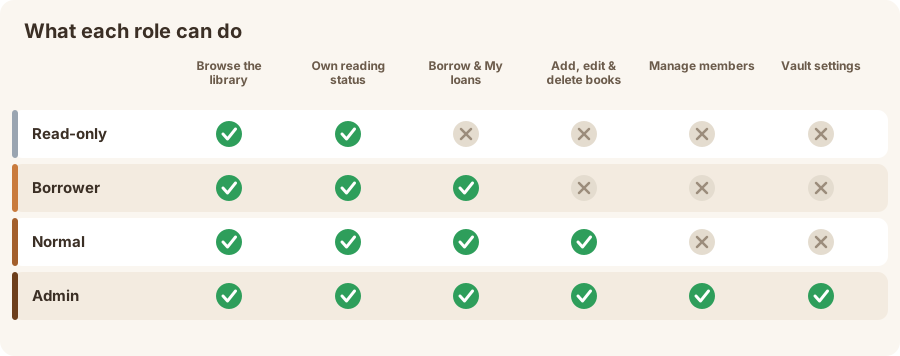
| Ability | Read-only | Borrower | Normal | Admin |
|---|---|---|---|---|
| Browse books, locations, categories and authors | ✅ | ✅ | ✅ | ✅ |
| Track your own reading status | ✅ | ✅ | ✅ | ✅ |
| Be lent books, see My loans and your loan history | — | ✅ | ✅ | ✅ |
| Add, import, edit and delete books, stock, locations, categories, authors | — | — | ✅ | ✅ |
| Manage customers, lend and return books, print labels | — | — | ✅ | ✅ |
| Invite, approve and remove members, change roles | — | — | — | ✅ |
| Change the vault's settings or delete it | — | — | — | ✅ |
- Read-only — can look around the library and keep their own reading list, nothing else.
- Borrower — for people who borrow from your library, such as family, friends or students with an account. They see the whole catalog and exactly what they have on loan.
- Normal — helps run the library: adds and edits books, manages customers and handles lending.
- Admin — everything, including who is in the vault.
Roles from SSO groups
Beta: this works differently in
1.3.7-beta.1. See Trying a beta.
If your organization signs people in with single sign-on (SSO), you can let the groups at the identity provider decide who is in your vault and with which role, instead of inviting people one by one. This is handy when the same people already belong to groups such as family-users or library-admins.
- Open the vault's Manage dialog, as in Inviting people.
- Find Add by SSO group and click Add group.
- Type the group's name exactly as your identity provider writes it, and choose the role its members get.
- Add a line for each group, then click Save.
The section is only there when SSO is turned on for the server, and only for an Admin.
From then on, every time someone signs in with SSO:
- If one of their groups is in your list, they join the vault with the role of that group, with no invitation. If several of their groups match, they get the highest role.
- If they no longer have any of the groups, they are removed at their next sign-in.
- If they still have books on loan, they become Restricted instead of being removed. A Restricted member can't borrow, edit or manage anything new, but their loans stay on record and can be returned. They go back to their role if a group comes back.
- The member list marks people who came in through SSO with Managed by SSO.
A few things to know:
- People you added or approved yourself are never removed by SSO. If you choose a role by hand for someone SSO added, they become a manual member too.
- A vault with no groups in the list is fully manual, as before.
- Each vault has its own list, so the same person can be in one vault because of a group and in another because you invited them. Their personal vault is never touched.
- Changes are applied at the person's next SSO sign-in, not when you save.
- A group that maps to Borrower can't be saved in a vault that has loans turned off, and a vault always keeps at least one Admin. In the second case the change is skipped.
Note: Which provider and which field carry the groups is set by the person who installs Vaultisse. See Single sign-on in the self-hosting guide.
What a Borrower sees
A Borrower gets a browse-only version of Vaultisse:
- The Library, Locations, Categories and Authors, and each book's page — read-only. The Add, Import, Edit and Delete buttons, the stock editor and the cover upload are all hidden.
- Their own reading status on any book, with the Want to read and Currently reading shelves in the menu and on the Dashboard.
- My loans, a page with two tabs: Loans lists the books they have right now and since when, and Loan history lists everything they have ever borrowed, with return dates (or Still on loan).
They do not see the Customers and Loans pages, other people's loans, or the print queue — and the server refuses those requests too, not just the buttons.
Lending a book to a vault member
A copy can be lent to one of two kinds of borrower:
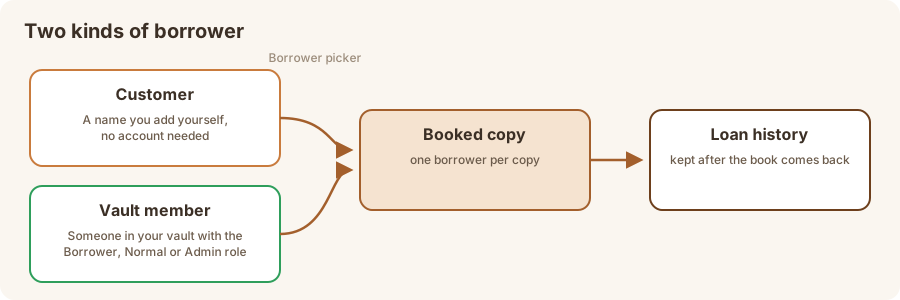
- A customer — just a name you keep, with no account. Customers can be organized into groups.
- A vault member — someone in your vault with the Borrower, Normal or Admin role (and an approved invitation). Members have no group.
To lend a copy, open the book's Stocks table, set the copy to Booked, and pick the person under Booked by. The list shows your customers and your eligible members together. Only a Normal or Admin member can do this.
A few things to know:
- The loan appears in the Loans page, the loan report and the book's Booked by column like any other, and the member sees it under My loans.
- Names are never copied: if a member changes their name, or a customer is renamed, past and present loans show the new name.
- Removing a member from the vault only removes them from the picker. Copies they already hold stay booked to them until returned, and their history is kept.
- Deleting a member's account returns the copies they held to Available and deletes their loan history. Deleting a customer deletes theirs.
- A member who is Read-only, Pending or Rejected doesn't appear in the picker.
Reading status is personal
Each person in a shared vault has their own reading list. Marking a book Read changes it for you only, and the Library filters, counters and Dashboard shelves show your own list. Every role can use it, including Read-only and Borrower.
Troubleshooting
A member isn't in the borrower list. Check that they accepted the invitation (not Pending) and that their role is Borrower, Normal or Admin — Read-only members can't borrow.
A member can't see the Add or Edit buttons. That's expected for Read-only and Borrower. Change their role to Normal to let them edit the catalog.
I'm a Borrower and want to return a book. Ask whoever runs the library — returning is done by a Normal or Admin member from the Loans page.