
Importing books
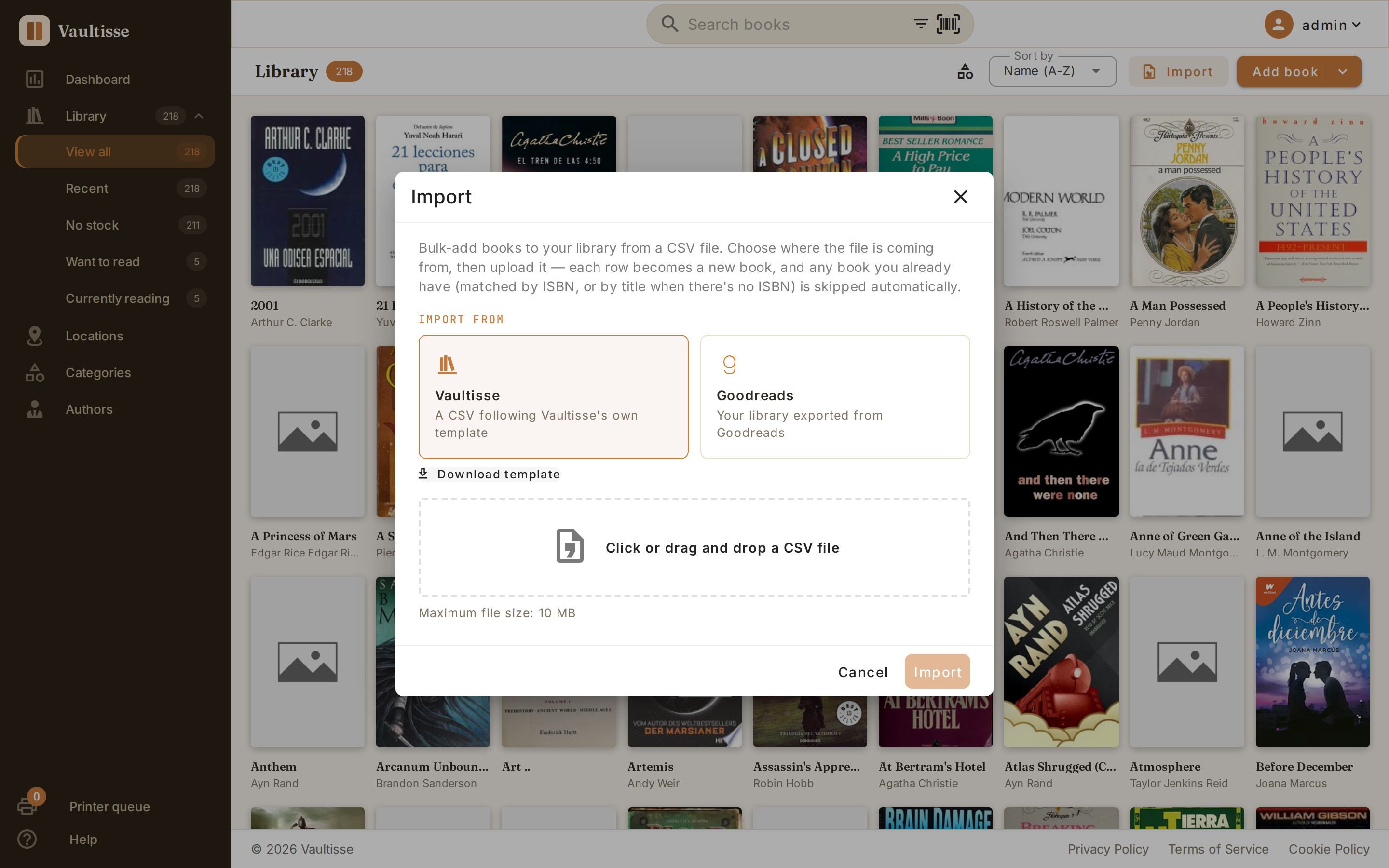
If you're moving your collection from Goodreads, or already have a spreadsheet of your books, you don't have to add them one by one. Click Import next to Add book on the Library page to bulk-add books from a CSV file.
Importing a file
- Click Import.
- Choose where your file is coming from — Vaultisse or Goodreads (see below for each).
- Click, or drag and drop, your CSV file onto the dropzone that appears.
- Click Import.
Each row becomes a new book. A book you already have — matched by ISBN, or by title when there's no ISBN — is skipped automatically, so importing the same file twice is harmless.
Tip: The Import button stays disabled until you've picked both an origin and a file under the size limit shown beneath the dropzone — how large a file your server accepts depends on how it's configured.
Importing from Vaultisse
Use this to fill in your library from a spreadsheet, or to move books between two Vaultisse accounts.
Click Download template under the Vaultisse card to get a starting CSV with the right columns already in place — title, authors, ISBN, publisher, published year, pages, format, category, description, language, cover image URL, and reading status. Fill in one row per book and upload it back.
Importing from Goodreads
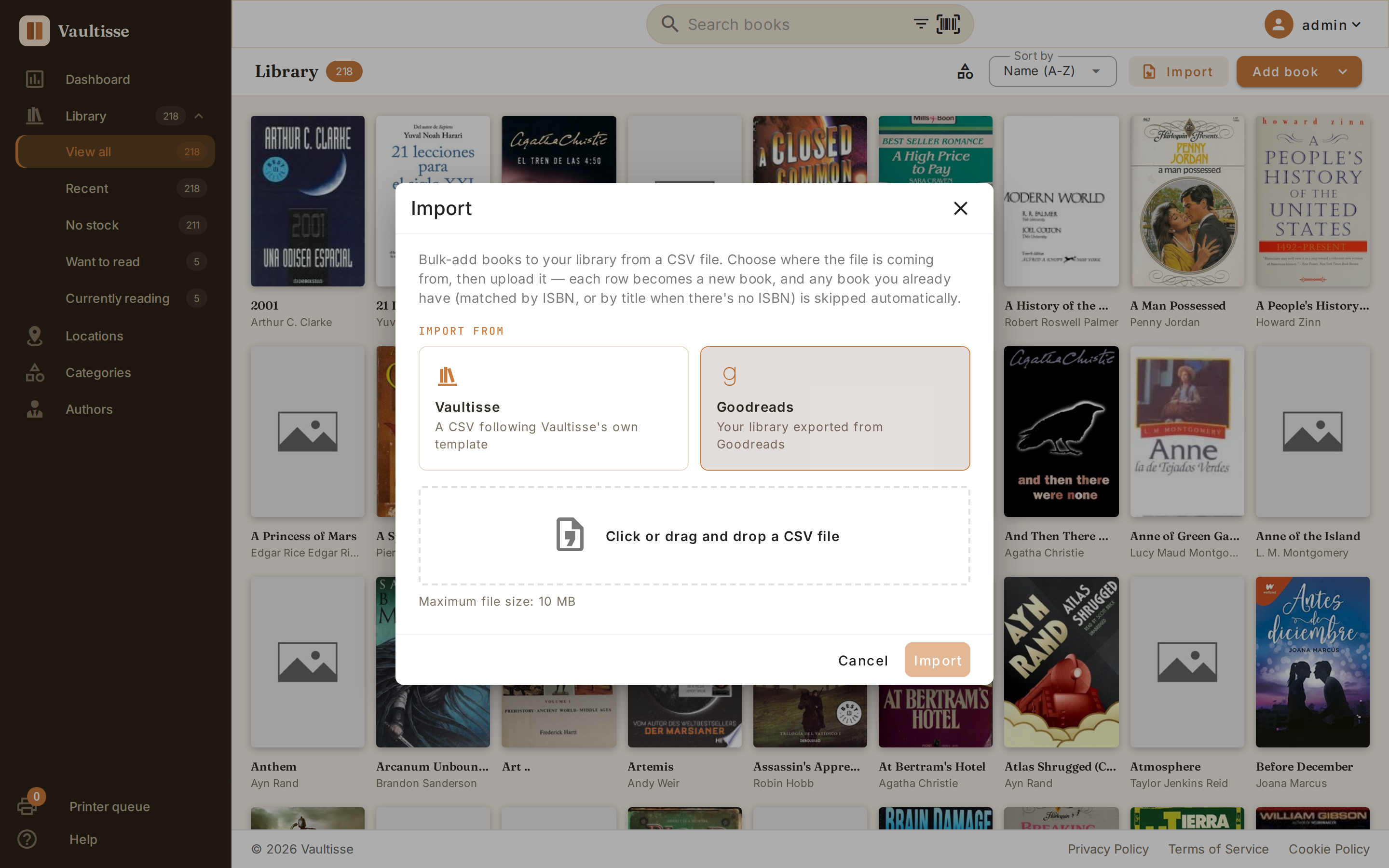
- In Goodreads, go to My Books → Import and Export and export your library as a CSV.
- Back in Vaultisse, open the Import dialog, choose Goodreads, and upload the file you just downloaded.
Goodreads' Exclusive Shelf (to-read, currently-reading, read) carries over as each book's reading status. Any other custom shelf you've made in Goodreads — for example a shelf named "office" to mean where a copy physically lives — becomes a location in Vaultisse too, with a physical copy (stock) created there automatically for that book.
After importing
Once the file finishes processing, the dialog closes and a confirmation shows how many books were added:
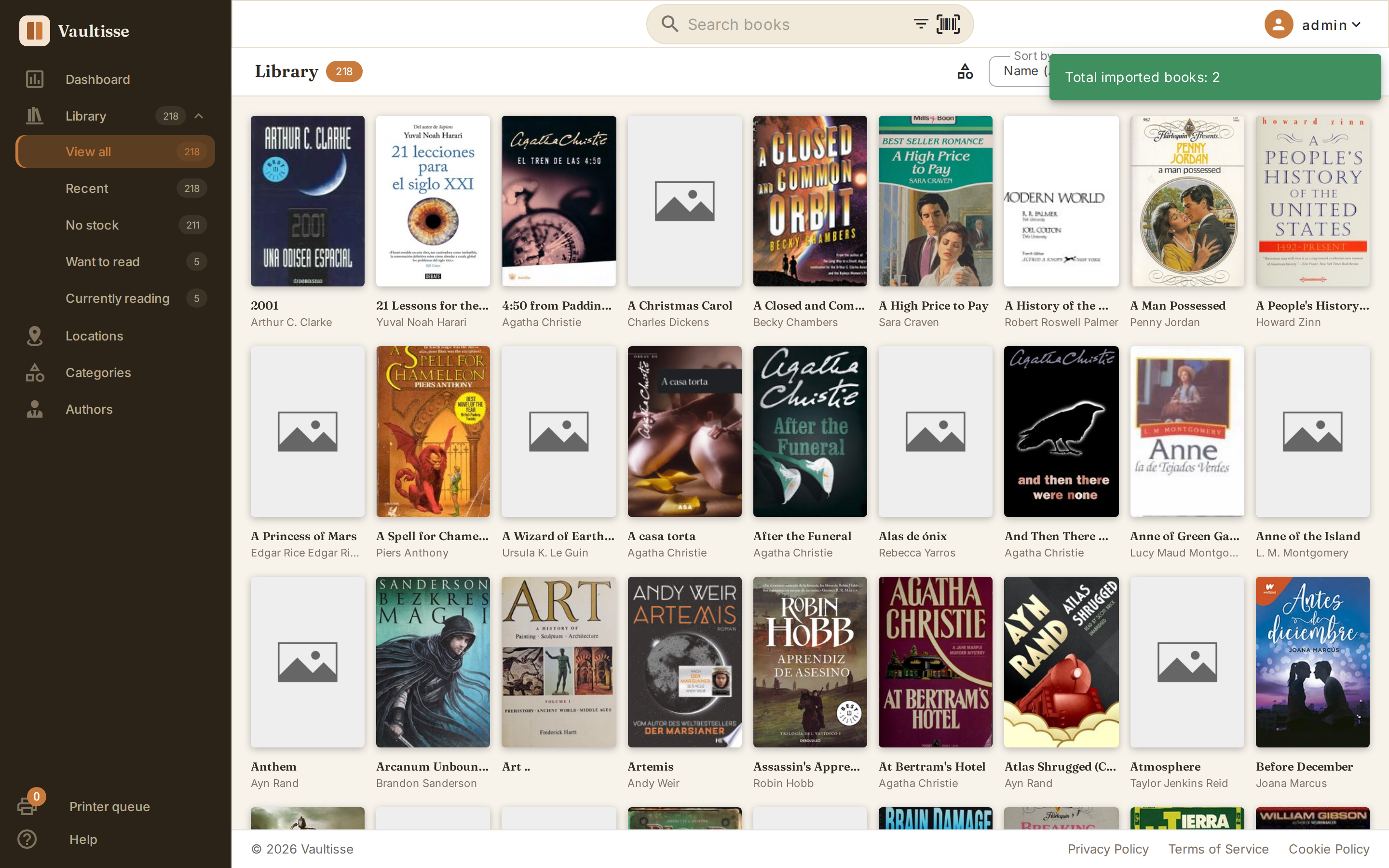
Imported books land on your Library page like any other book — open one to fill in anything the CSV didn't cover, such as a cover image or additional copies.